



Cookie Settings
This site uses third-party website tracking and analytical technologies to help us improve the user experience.
Privacy Policy
There are two digital card options, compatible with Android (Google) and Apple mobile software. The digital card looks slightly different on each platform due to their design limitations.
Click on the relevant icon or scroll down to view step by step instructions:

Android (Google)
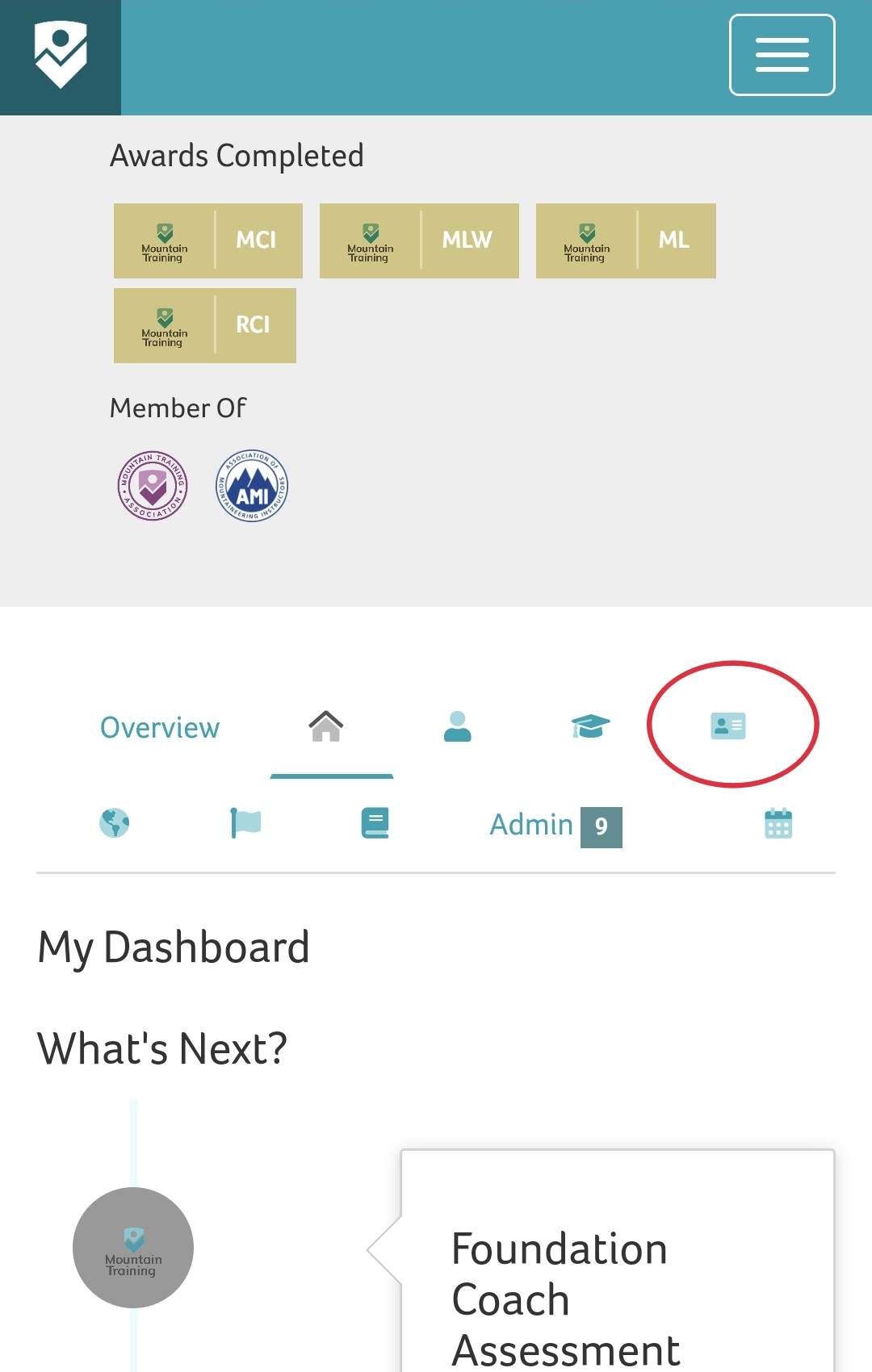
Step 1: Click on the Memberships & Clubs tab of your account
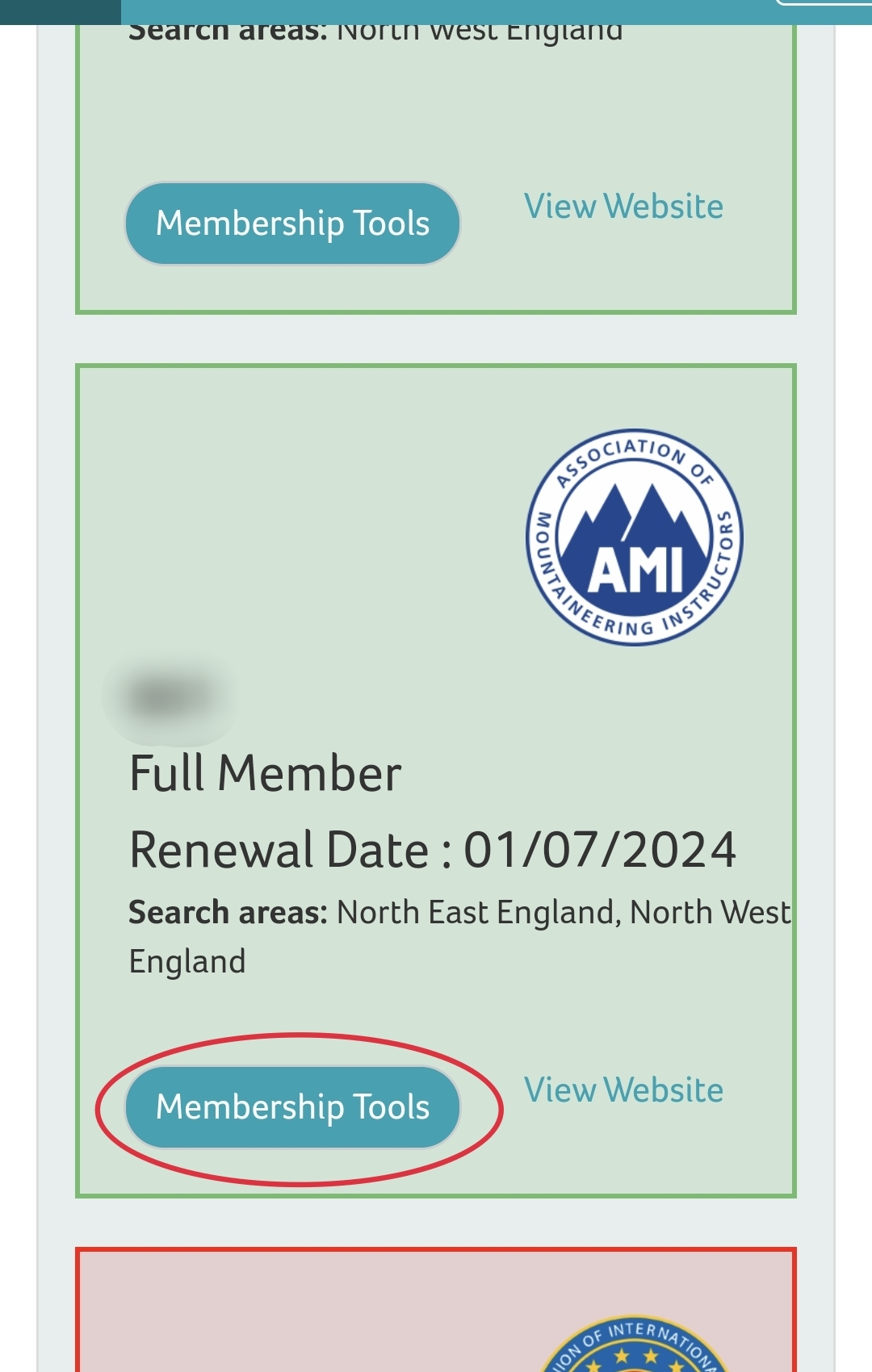
Step 2: Click on the Membership Tools button for the relevant association
Step 3: Scroll down and click the 'Add to Google Wallet' button
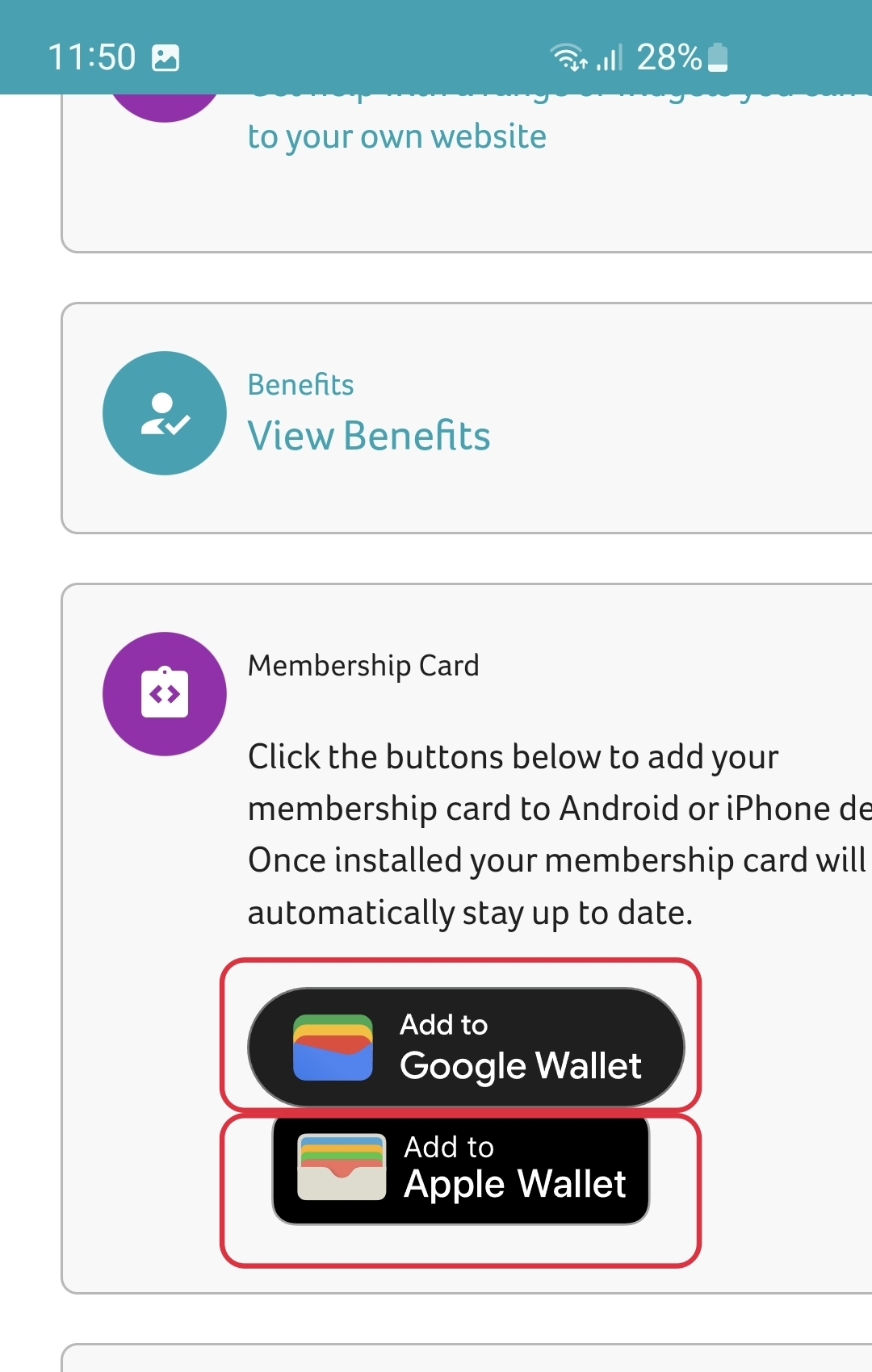
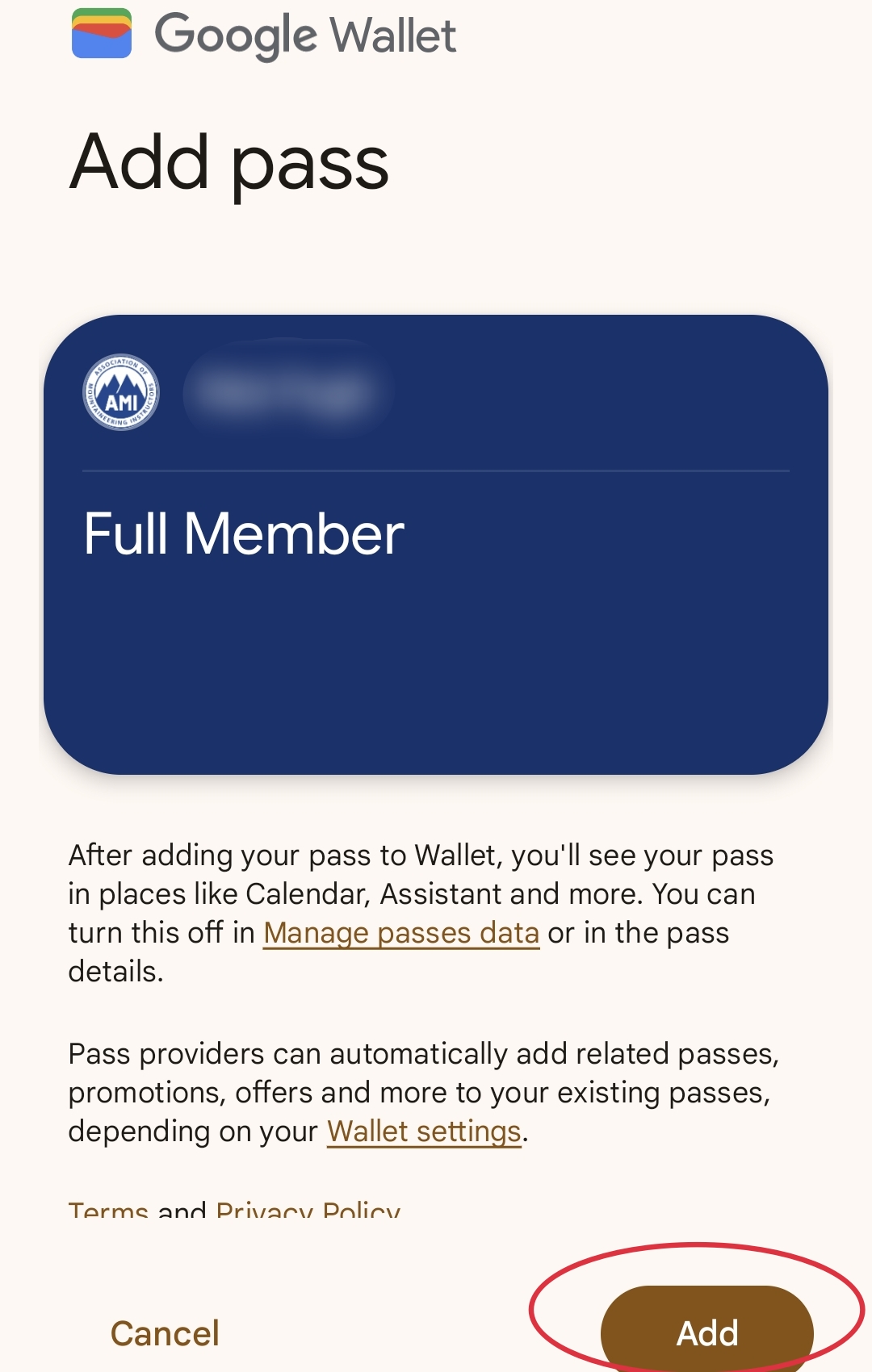
Step 4: Google Wallet will open, click on the Add button.
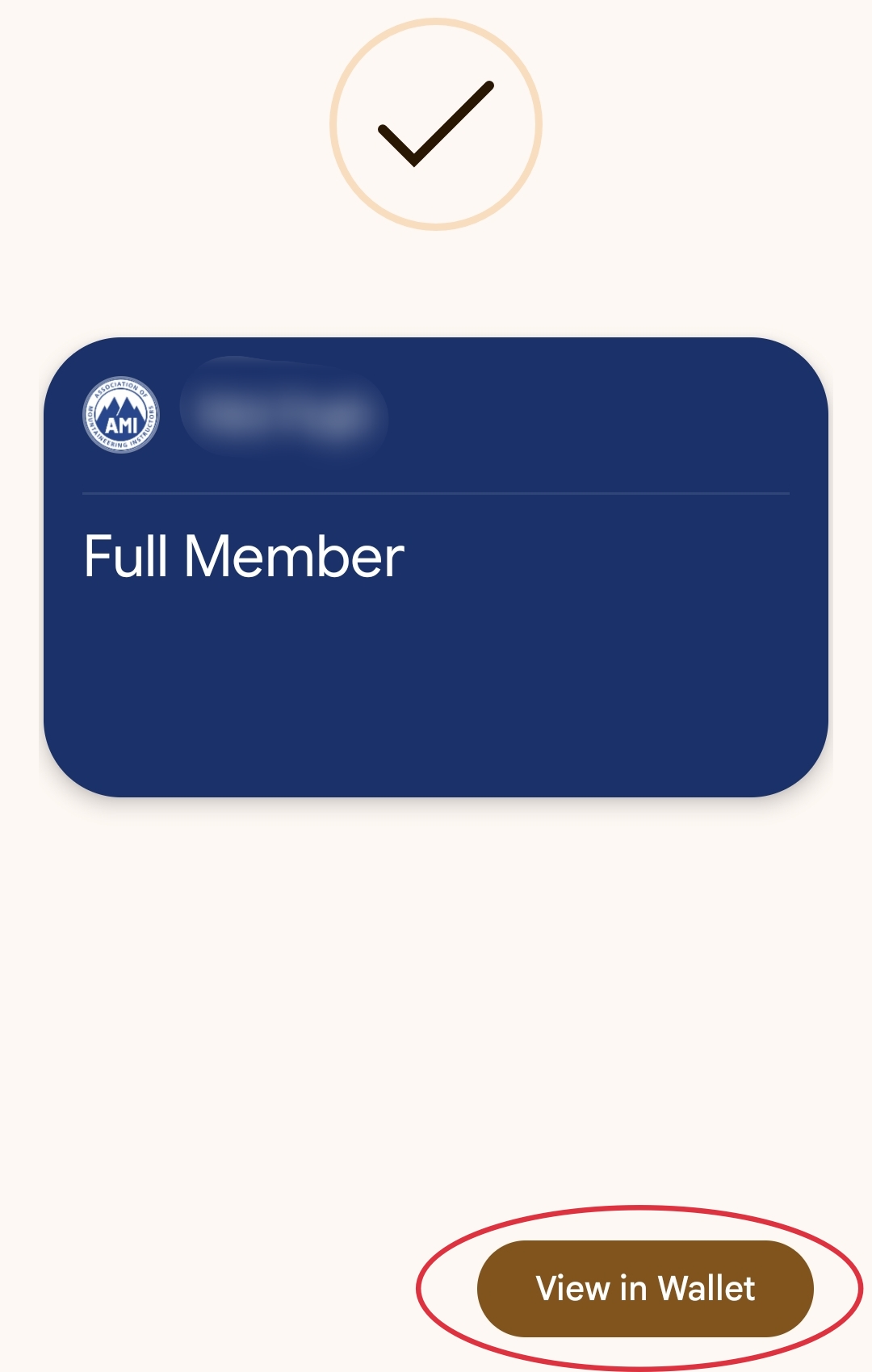
Step 5: Once successfully added, you can click 'View in Wallet'
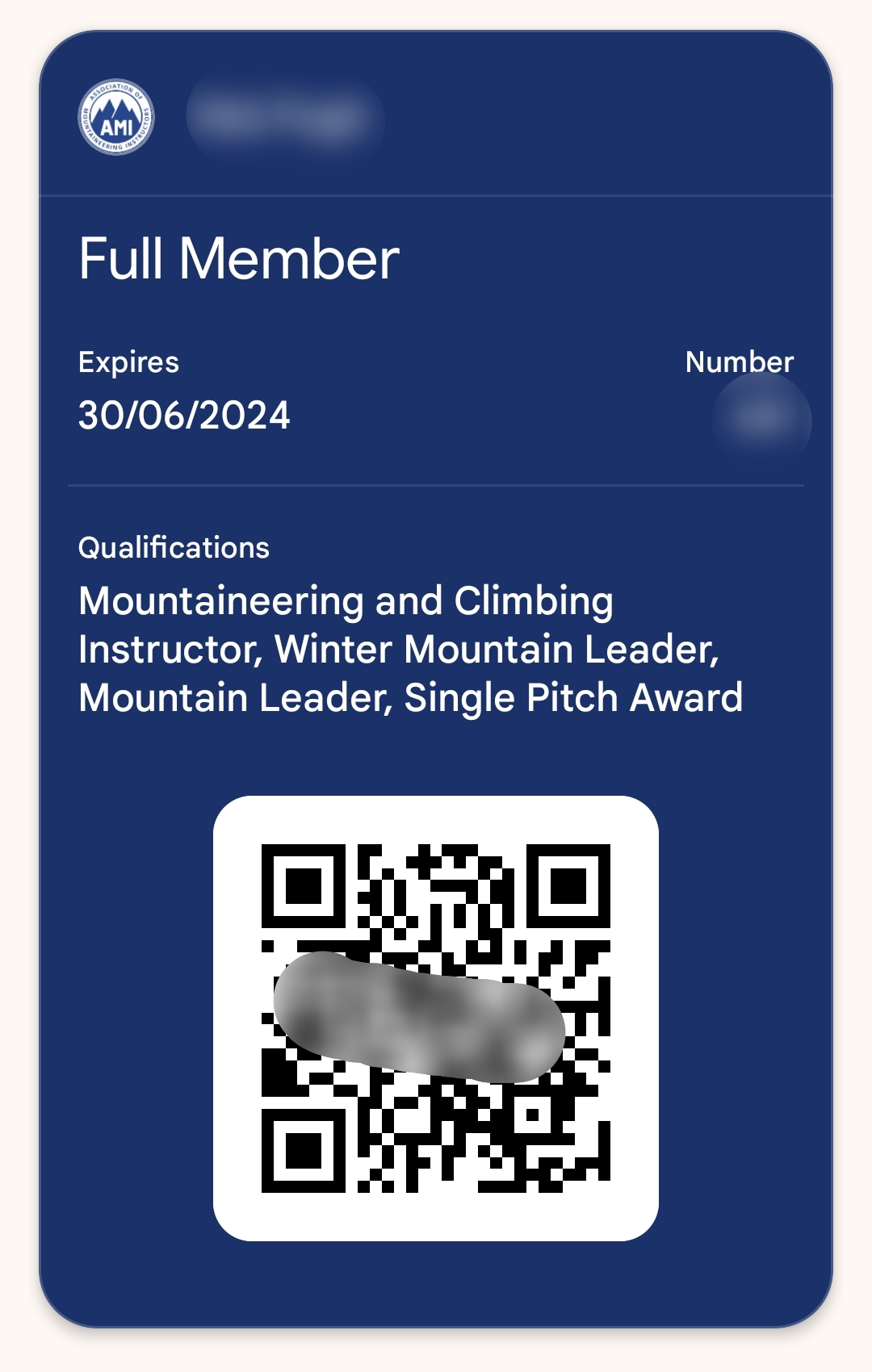
Step 6: This is your digital membership card
Apple (iPhone)
Step 1: Click on the Memberships & Clubs tab of your account
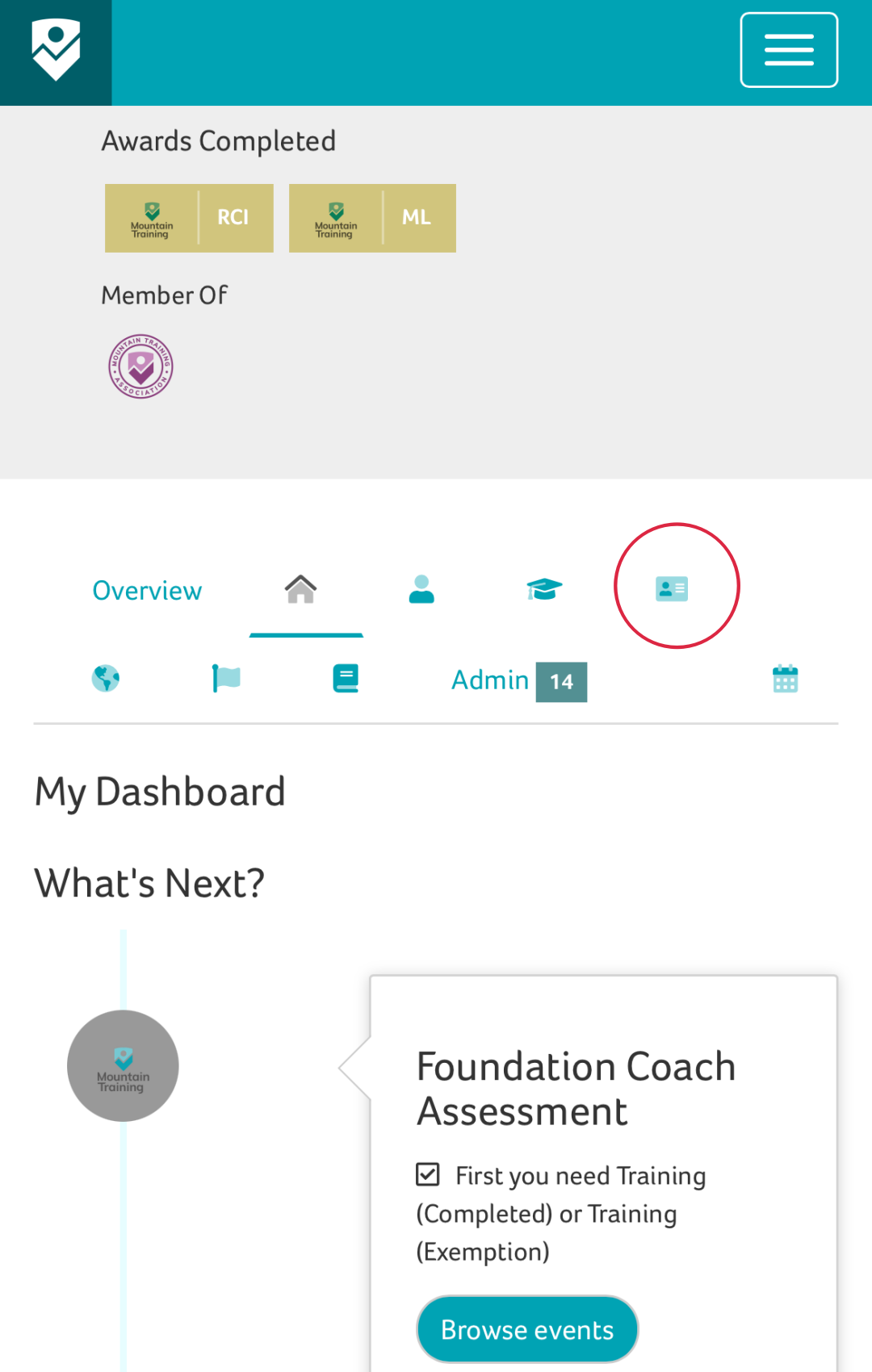
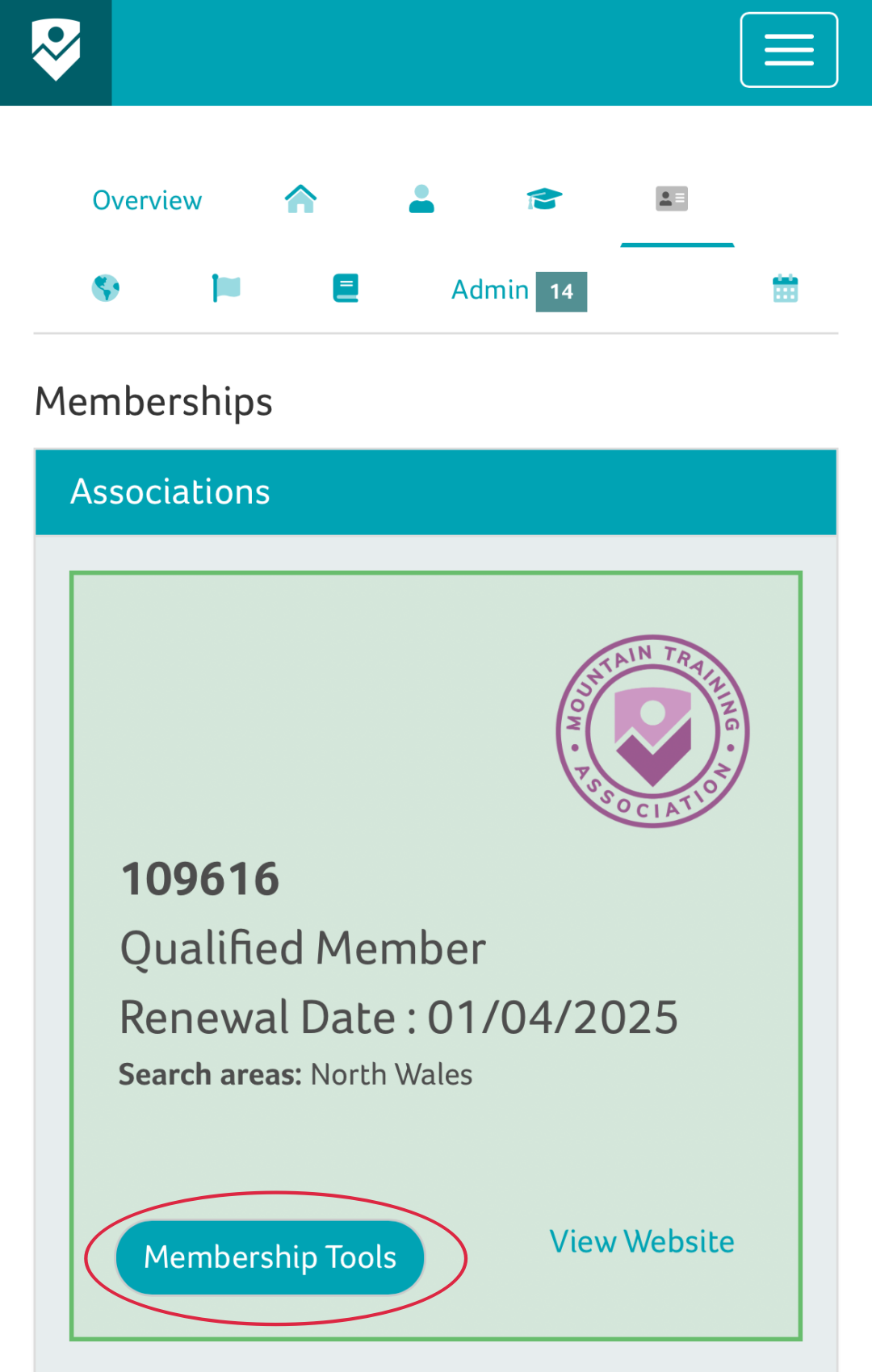
Step 2: Click on the Membership Tools button for the relevant association
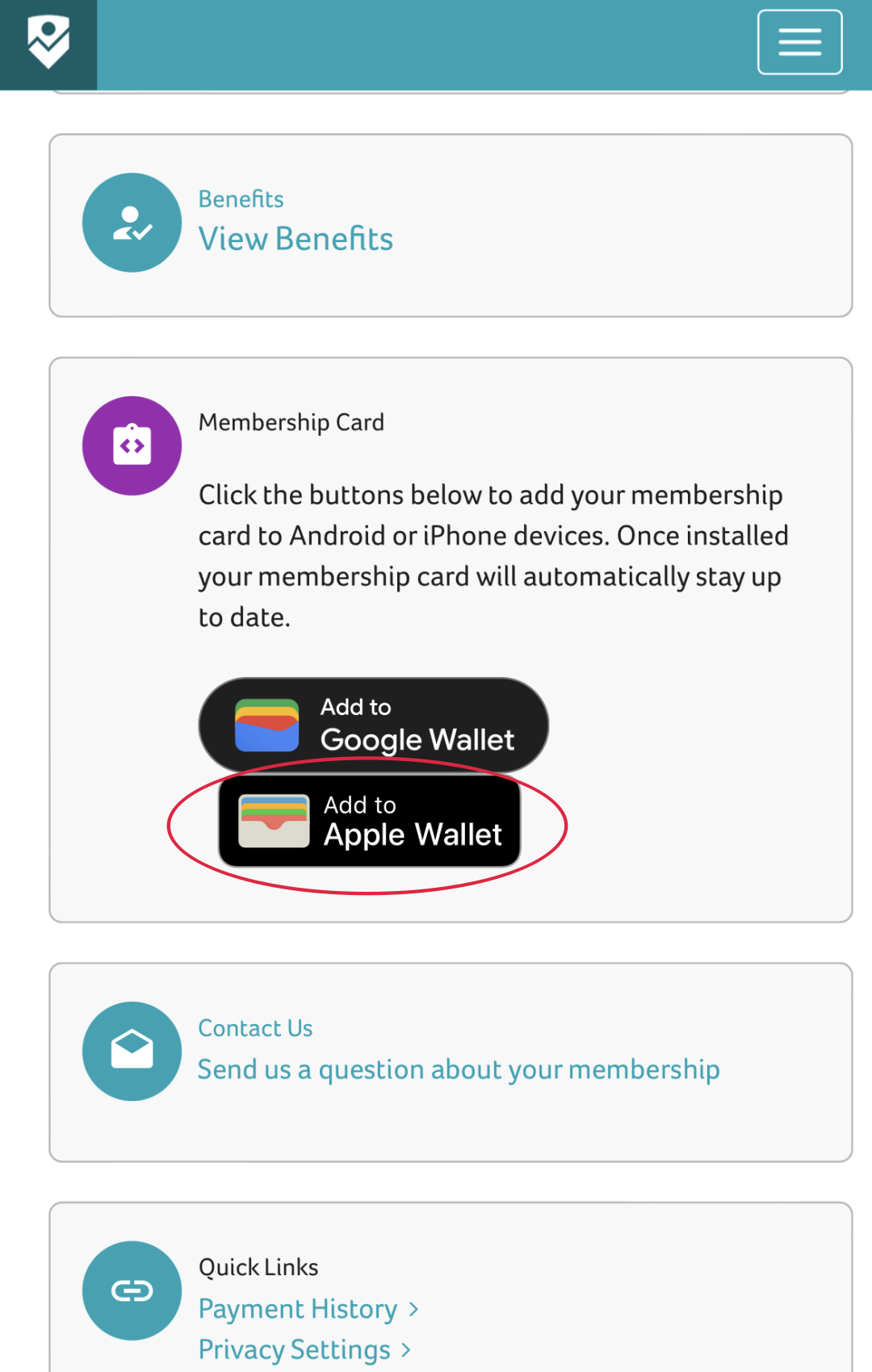
Step 3: Scroll down and click the 'Add to Apple Wallet' button
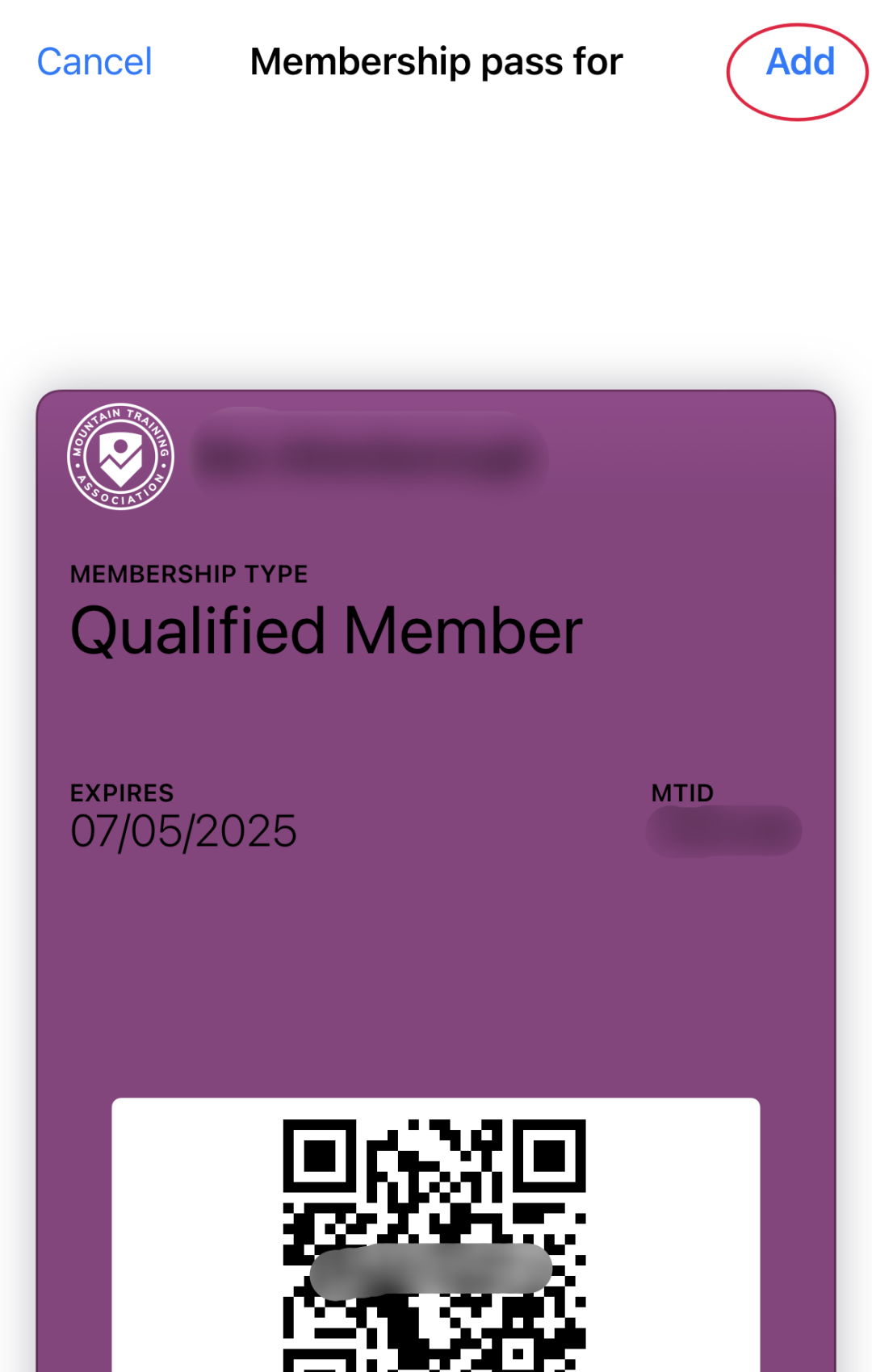
Step 4: Apple Wallet will open, click on the Add button.
Step 5: Once successfully added, you can view your card or click 'Done'
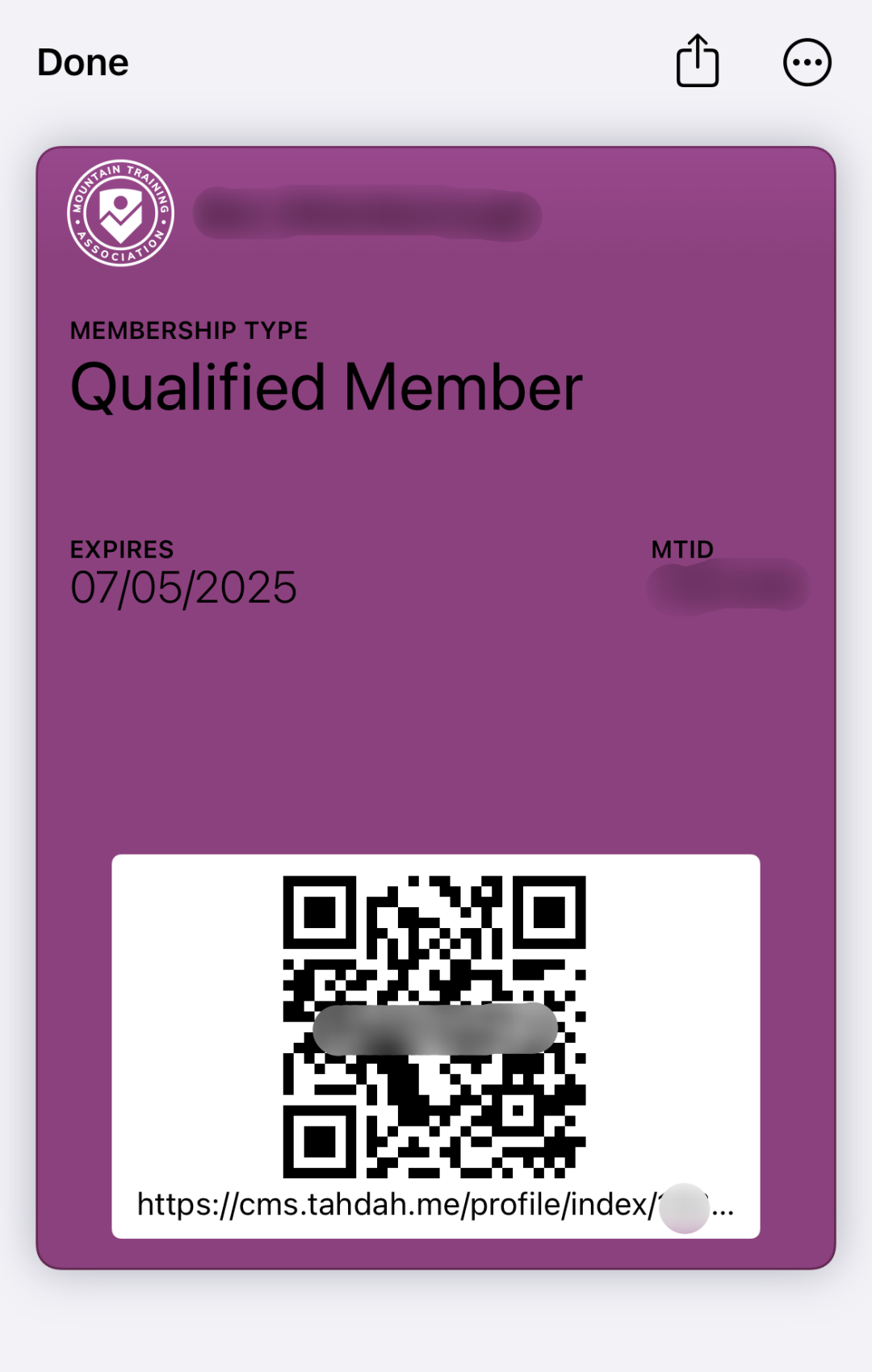
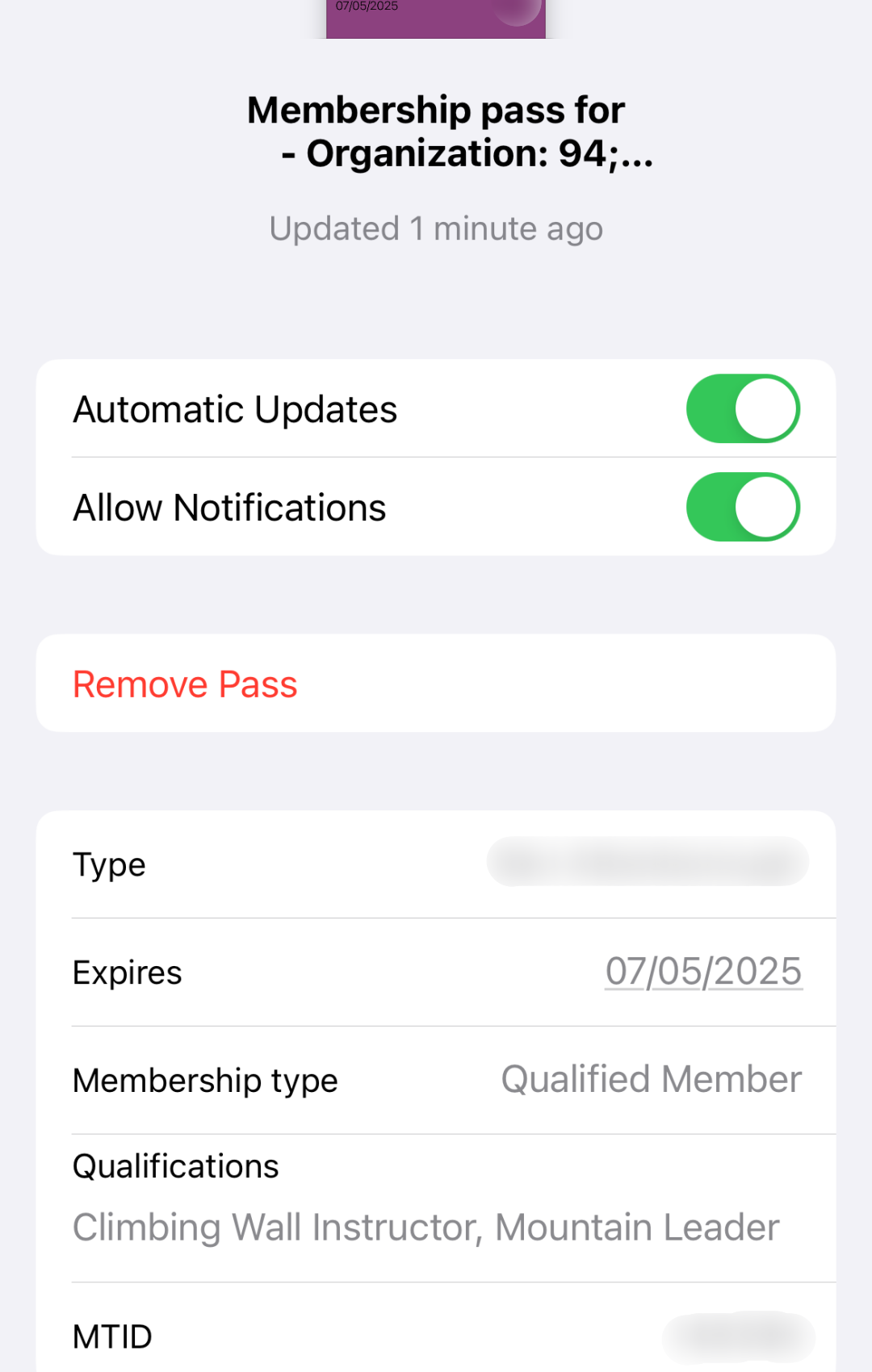
Step 6: To view your qualifications, click the three dots and then click Pass Details.
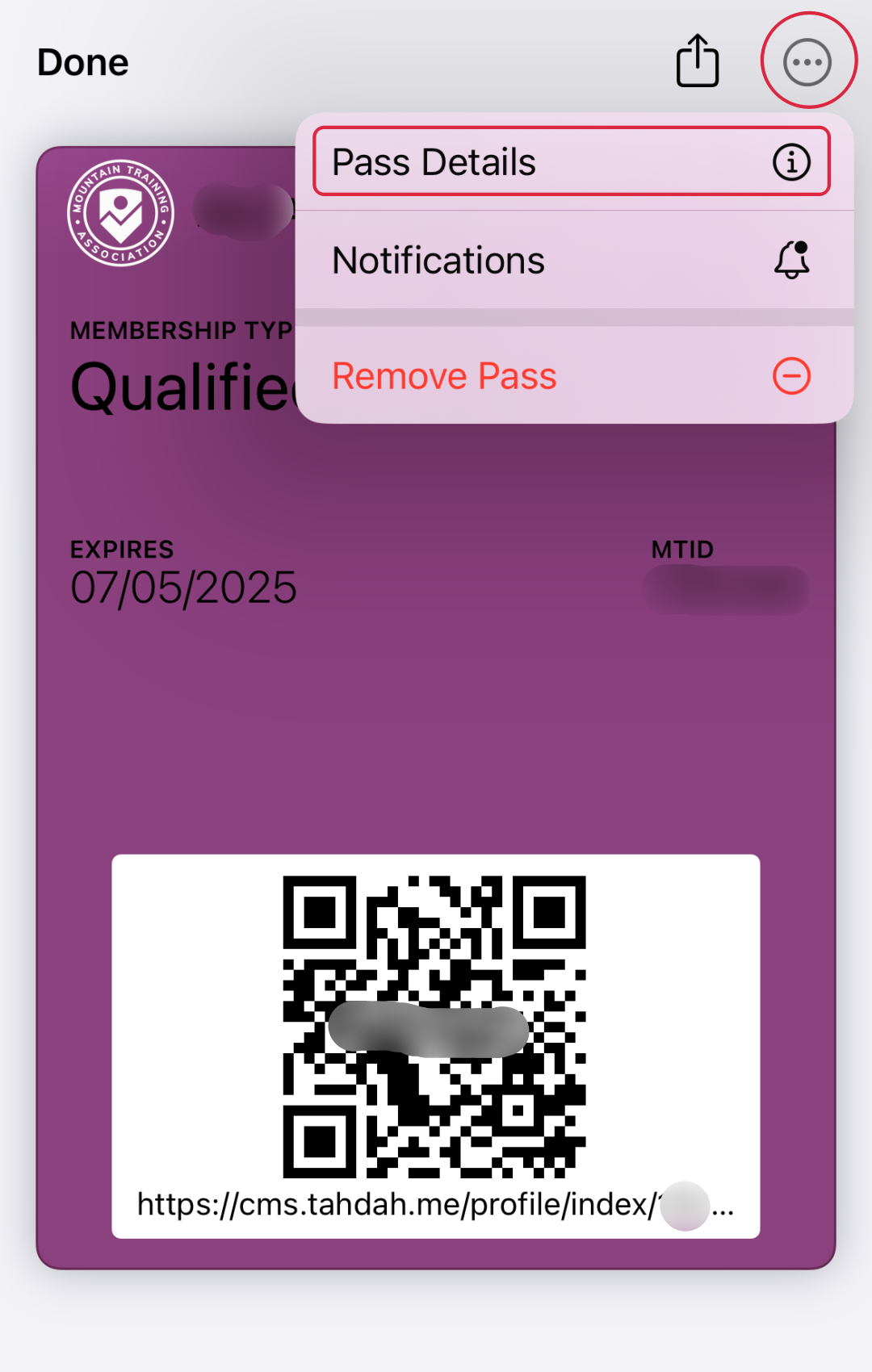
Step 7: Your qualifications are listed here.